Lenovo ThinkPad Ultra Docking Station Review: 8.4/10 Verdict
A verified buyer on Amazon summed up the Lenovo ThinkPad Ultra Docking Station experience in one line: “With an external monitor and wireless keyboard/mouse it functions just like a desktop because I never have to open the laptop to use it.” After sifting through hundreds of reviews, the verdict lands at 8.4/10 — a solid enterprise-grade dock with reliability for most ThinkPad users, but a few sharp edges for power users and those outside Lenovo’s ecosystem.
Quick Verdict: Conditional
| Pros | Cons |
|---|---|
| Solid, enterprise-focused build quality | Occasional compatibility issues with certain ThinkPad models |
| Supports up to 3 UHD displays | 4K/60Hz with multiple monitors can be inconsistent |
| Side connector secure docking with key lock | Awkward physical docking; raises laptop at an angle |
| Rapid charging for supported ThinkPad laptops | Charging external devices via always-on ports can be flaky |
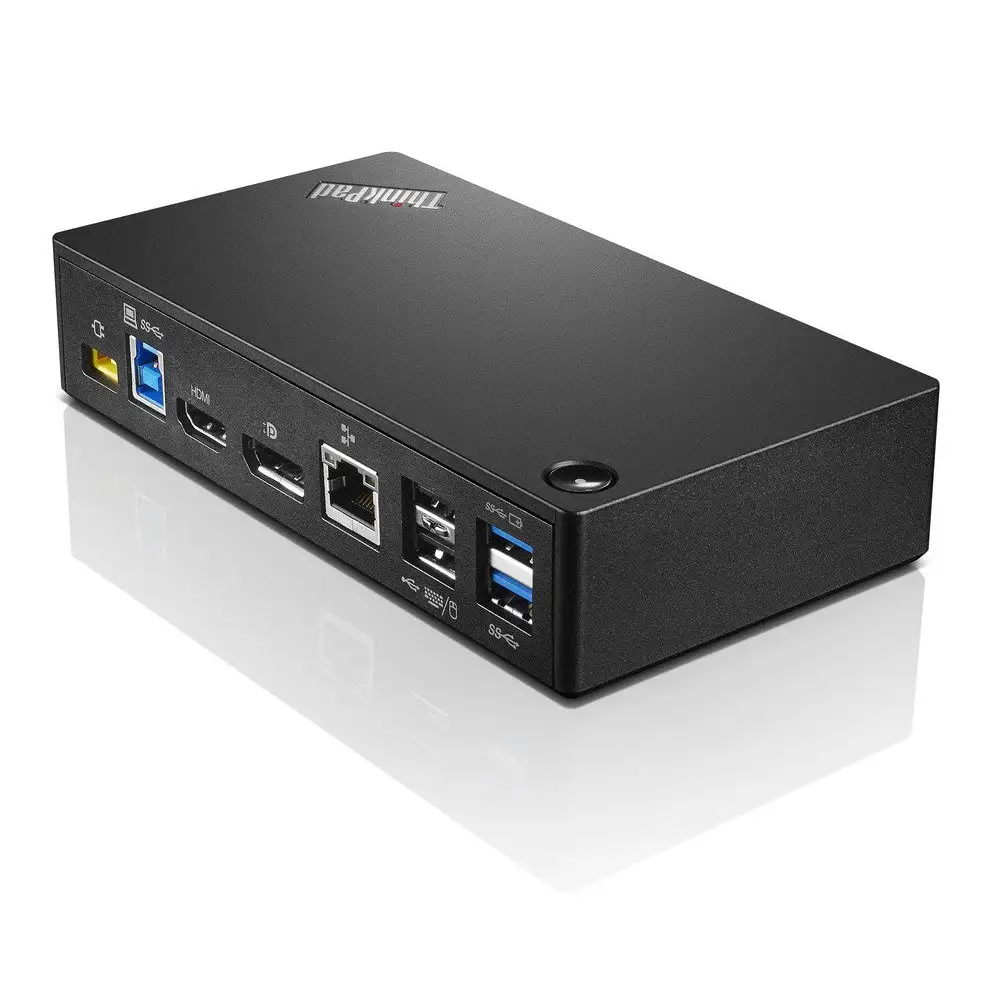
| Broad port selection (USB-C, DisplayPort, HDMI, VGA) | High MSRP, better value when discounted heavily |
| Mirrored power button & mechanical unlock for ease of use | Limited value for non-ThinkPad laptops |
| Reliable single-cable desktop transition | USB ports may fail over long-term heavy use |
Claims vs Reality
Lenovo’s marketing leans heavily on supporting “up to three UHD displays,” rapid charging, and enterprise asset management features like PXE boot and Wake-on-LAN. On paper, it’s a docking powerhouse; in practice, some edge cases undermine the seamless picture.
The triple UHD display claim appeals to productivity-heavy users. However, an Amazon reviewer noted, “If you run a 4K monitor at 60Hz, you cannot run two 1080s at 60Hz alongside it… you have to run the 4K at 30Hz.” Official specs say otherwise, suggesting there’s a gap between theoretical capability and firmware/driver realities.
Rapid charging works as advertised for supported models, but Reddit user u/[name removed] shared, “When I connect a device over the always-on USB-A port to power it, the device constantly switches from charging to not charging and back… others won't charge continuously even with the laptop docked.” That undercuts the dock’s utility as a hub for charging accessories when undocked.
Finally, the “enterprise asset management” features—Wake-on-LAN, PXE boot—are mostly praised in institutional settings, but irrelevant for individual buyers. A Best Buy customer admitted, “I’m just some gal using it for her personal machine… that’s probably the main selling point for institutional users.”
Cross-Platform Consensus
Universally Praised
Across Amazon, Best Buy, and Trustpilot, the docking station earns consistent praise for turning a ThinkPad into a full desktop instantly. A verified buyer enthused, “I never have to open the laptop to use it.” This is gold for office professionals who jump between meetings and desks.
Port variety and legacy support also score points. Users routinely mention the relief of having VGA alongside DisplayPort and HDMI, enabling mixed monitor setups without dongle chaos. For film editors or IT staff needing flexible video output, it’s a rare modern dock respecting older equipment.
Build quality is another highlight. Trustpilot reviewers remark on its “sturdy construction that exudes durability,” while long-term Lenovo fans on Revain recall the dock evokes “the chunky look” of older IBM-built ThinkPads—equal parts nostalgic and practical.
Common Complaints
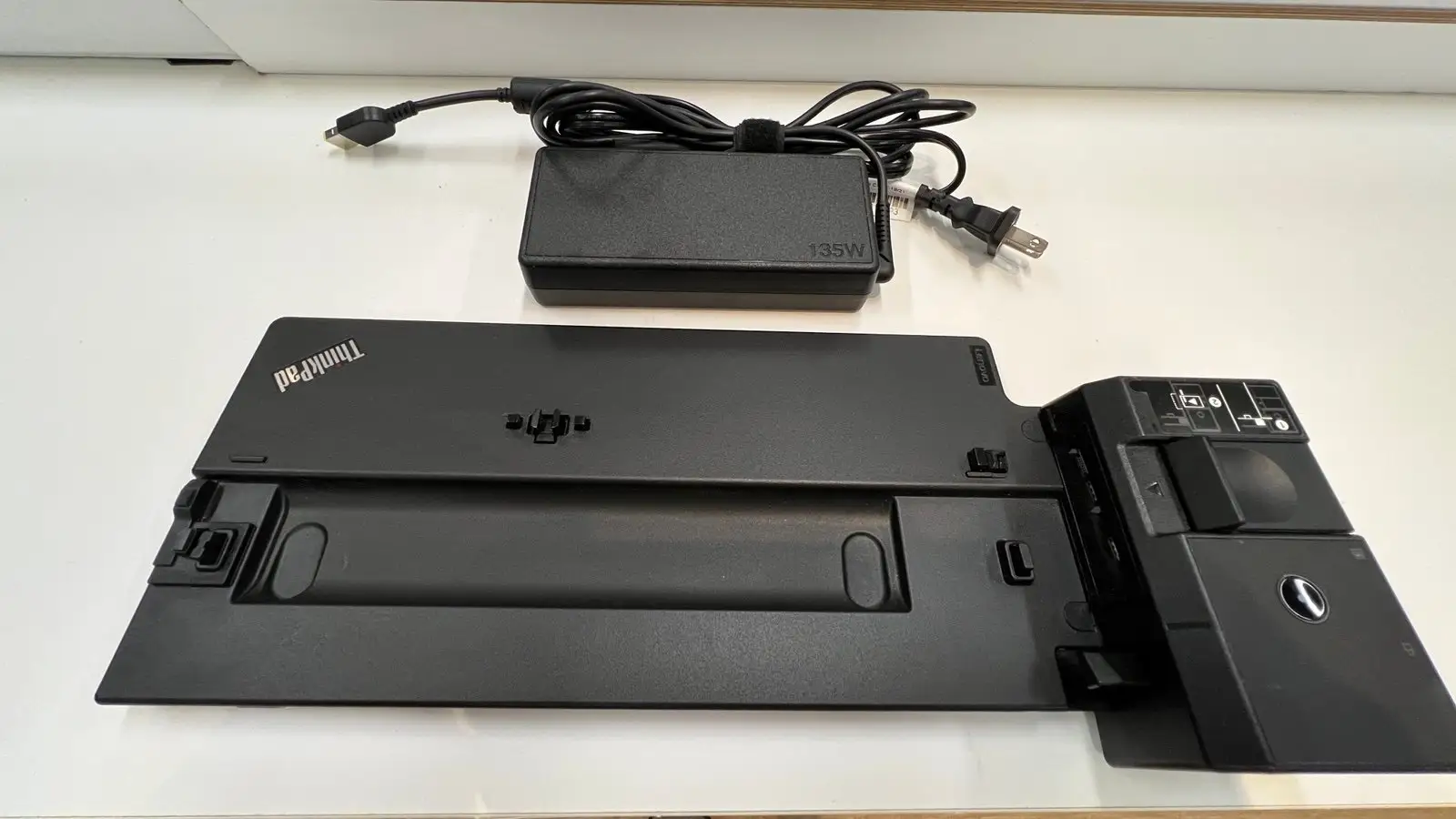
Docking mechanics frustrate some. The side connector is secure, but multiple Amazon reviewers echoed “awkward and clumsy to try to fit the computer into the dock”. It props laptops at a slight angle, which one user found “ergonomically counterproductive” for typing.
Multi-monitor support is the sorest point. High-res setups can trigger flickering or mismatched refresh rates. A Best Buy reviewer described, “After I dock my laptop and bring it out of hibernation, the monitors flicker on and off for a minute or two before remaining on.” This affects those using dual or triple displays most.
Charging non-laptop devices is unreliable, particularly when the dock is used standalone. The Reddit post detailing external device charging cutting in and out suggests that buyers expecting it to double as a phone charger may be disappointed.
Divisive Features
The mirrored power button and mechanical lock divide opinion. Enterprise IT departments love them for security and simplicity, especially in hot-desking environments. Individual users are less impressed, finding them unnecessary and adding complexity.
Similarly, the inclusion of VGA in 2024 earns applause from some as a lifeline for ancient projectors, while others see it as wasted space better allocated to modern ports.
While Lenovo boasts about “driver-free docking,” experiences vary. Some have flawless plug-and-play sessions; others must wrestle with firmware updates and driver tweaks before performance stabilizes—especially with certain ThinkPad generations.
Trust & Reliability
Trustpilot entries show high ratings once you filter out counterfeit/refurb scams. One complaint warns, “Dock intermittently turns off screens every couple of minutes… needed firmware upgrade for it to work,” hinting at early batches with outdated firmware.
On durability, long-time ThinkPad users speak highly. A Revain reviewer confidently states their dock works “under Linux” with multi-monitor setups, praising discounts of up to 85% as “hammer deals.” Conversely, a Best Buy customer hit trouble after a USB port failed at month seven, with replacement support proving difficult.
Scam and mis-shipment warnings from Lenovo itself urge buyers to watch for correct part numbers, as receiving another country’s dock can create compatibility or safety issues. This has actually happened in secondary markets, making authorized channels safer for high-value purchases.
Alternatives
A logical alternative within Lenovo’s ecosystem is the ThinkPad USB-C Dock Gen 2. While not mechanically locking, it offers broader compatibility beyond ThinkPads and easier cable-based docking. However, it sacrifices some enterprise security functions and may cap monitor outputs for ultrawide setups.
For older ThinkPad models, the Mini Dock Plus Series 3 offers a more reassuring click-in mechanism, recalled fondly by several Amazon reviewers. Yet, it won’t fit newer side-connector ThinkPads like the T14/T15.
Users outside Lenovo’s brand should consider universal Thunderbolt docks from brands like Plugable, mentioned in Lenovo’s own promotion materials. These often support higher bandwidth and monitor refresh rates but won’t integrate as tightly with ThinkPad power systems.
Price & Value
Pricing is volatile. The US MSRP hovers around $329.99, but frequent drops to ~$92 make it far more attractive. On eBay, used models sell from $24.99 to $71 depending on condition and included adapters, and durability makes the resale market robust.
Community consensus is clear: pay full retail only if corporate procurement is footing the bill. As one Trustpilot reviewer observed, “At full retail…I found a great deal on one which makes it totally worth the price I paid.” Hunting for discounts or certified refurb units dramatically improves ROI.
FAQ
Q: Can the Lenovo ThinkPad Ultra Docking Station support three 4K monitors at 60Hz?
A: While marketed for triple UHD displays, multiple reviews confirm that full 60Hz across all monitors—especially combined with 4K—is often unreliable without lowering one or more refresh rates.
Q: Does the dock charge devices when the laptop is not connected?
A: The always-on USB ports are intended for that, but Reddit reports show inconsistent charging behavior for certain devices, particularly smartphones.
Q: Is this dock compatible with non-ThinkPad laptops?
A: It’s designed for Lenovo ThinkPads with the side docking connector. Non-ThinkPad laptops generally won’t work or will have limited functionality.
Q: How secure is the docking mechanism?
A: The side connector coupled with the mechanical lock makes it physically secure, suitable for shared office environments where theft prevention matters.
Q: When should firmware be updated?
A: If you experience monitor flicker, resolution mismatches, or USB dropouts, firmware and driver updates are a common fix per Lenovo support and user advice.
Final Verdict
Buy if you’re a ThinkPad owner needing instant desktop transitions, secure physical docking, and broad port support—especially in enterprise settings. Avoid if you run complex multi-monitor 4K setups or expect perfect charging for external devices without the laptop. Pro tip from the community: hunt eBay or corporate surplus sales for sub-$100 units; firmware-update immediately after purchase to avoid the most common glitches.