Dell WD19TBS Dock Review: Conditional Buy Verdict
A surprising pattern emerged from user reports on the Dell Thunderbolt Dock WD19TBS: while its official specs promise top-tier Thunderbolt 3 performance, multi-monitor support, and 130W power delivery, real-world experiences swing sharply between flawless productivity setups and persistent compatibility or hardware failures. Based on cross-platform feedback, the dock earns a 7.2/10 — excellent for certain Dell laptop owners, but risky for others relying on non-Dell systems or complex display configurations.
Quick Verdict: Conditional
| Pros | Cons |
|---|---|
| Strong power delivery to Dell laptops (up to 130W) | Inconsistent performance with non-Dell devices |
| Supports up to three displays, including 5K + dual 4K | Dual 4K/60Hz often fails without complex workarounds |
| Solid build and VESA mount options | Fan failures and overheating reported within months |
| Seamless single-cable connectivity | USB ports sometimes provide power only, no data |
| Firmware updates possible without reboot | Price remains high compared to alternatives |
| Durable with Dell devices over long term | Random disconnects and signal loss on TB4 systems |
| Compatible with select Apple products | Audio jack issues with official drivers |
Claims vs Reality
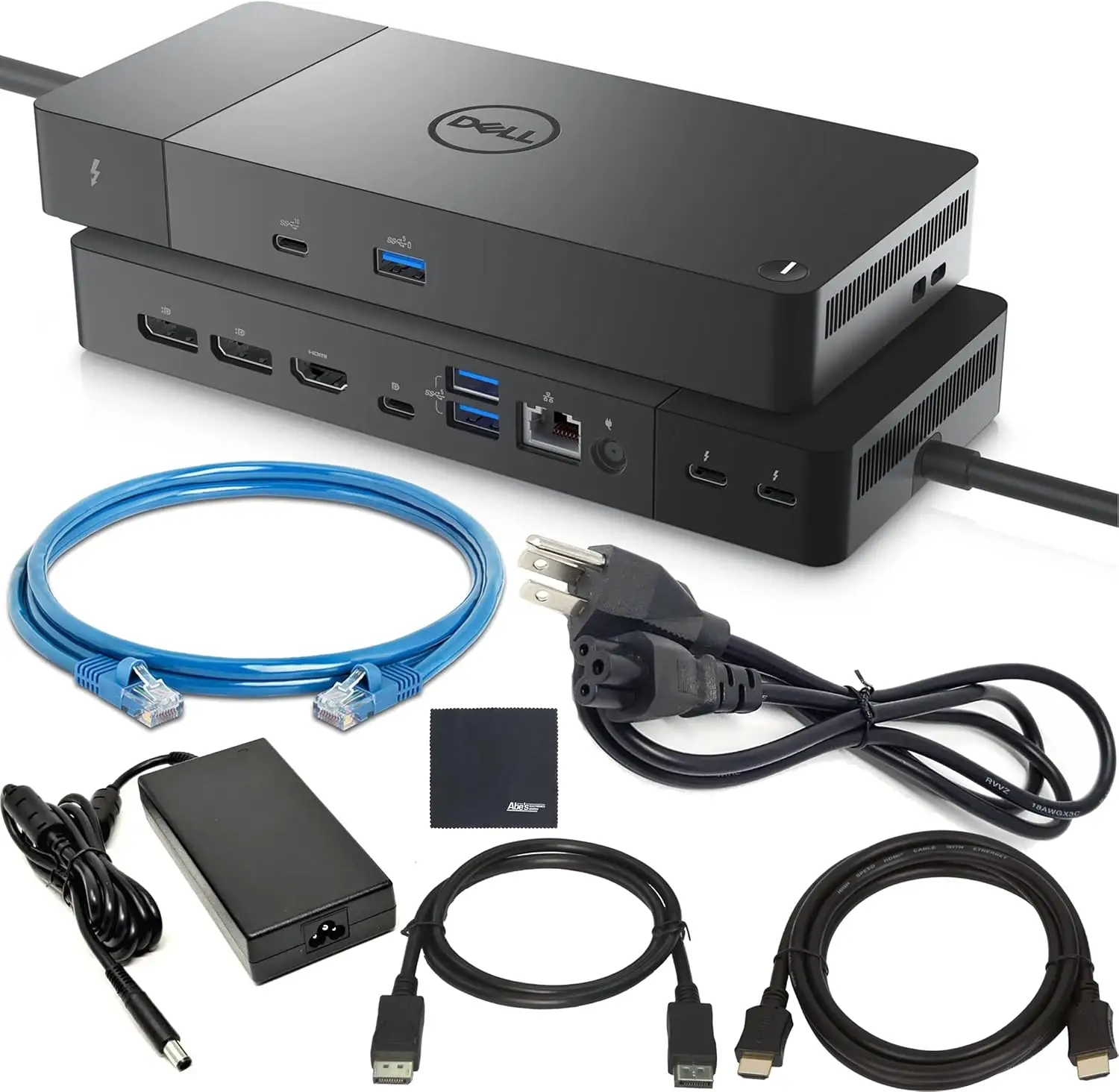
Dell markets the WD19TBS as offering “ultimate connectivity” via Thunderbolt 3, supporting up to three displays and delivering 130W to Dell systems. On paper, this should be a powerhouse for multi-monitor setups. But Reddit user u/sad-wd19-user noted: "As soon as I disconnect the laptop and plug in again, the second monitor will be throttled to 4K/30Hz… this workaround defeats the very purpose of having a Thunderbolt dock." This contradicts the seamless multi-display promise, especially for users switching between devices.
The claim of broad cross-brand compatibility is also undermined. A verified buyer on Amazon observed: "The dock can supply sufficient power to my laptop, but compatibility problems make it not worth it." While Dell specifies up to 90W for non-Dell systems, multiple reports suggest intermittent data transfer failures and monitor detection issues.
Dell’s “most manageable docks ever” line, touting easy firmware updates without reboot, does align with some user experiences. Reddit user u/JP_Hughan confirmed firmware updates can be done smoothly, but cautioned: "The way the product’s specs say it’s supposed to work doesn’t always align with how it actually works."
Cross-Platform Consensus
Universally Praised
For Dell Latitude, Precision, and XPS owners, the WD19TBS often delivers exactly what’s promised. Reddit user u/brooksa found it “perfect for me… both with my personal Dell machine and my work MacBook Pros.” Professionals working remotely benefit from the dock’s single-cable simplicity, as BestViewsReviews notes: “It is very easy to hook up multiple devices into the docking station and then connect it to my laptop.”
Power delivery is a standout strength for compatible systems. One Reddit user highlighted: "Unlike other manufacturers like Accell and Startech docks, which had terrible issues with charging the laptop, this delivers 130W perfectly over Thunderbolt 3." Dell’s VESA mount option also wins praise for keeping desks clutter-free.
The dock’s compatibility with certain Apple devices surprised many. An Apple Community poster reported successful use with an iPad Pro 11 M1: "It does work even though it has not been advertised… only problem is charging halts if the port exceeds allowed temperatures."
Common Complaints
A recurring frustration involves multi-monitor setups, particularly dual 4K/60Hz. Dell’s own forums are filled with users unable to achieve this without Display Stream Compression (DSC) tweaks. Reddit user u/brooksa resolved their Surface Laptop 4 issues by enabling DSC, but many remain unaware of this fix. Without it, macOS users often face mirrored displays or resolution caps — “It only mirrors… limited to 1920 dpi and will not allow my Dell monitor to go to 2560 resolution.”
Hardware reliability is another weak point. Reports of fan failures are widespread, with Amazon customers receiving BIOS errors like "Your dock fan has failed". Corporate IT discussions on Spiceworks describe replacing WD19TB units “almost every day” due to fan issues, sometimes after just six days of use.
USB functionality can be inconsistent. BestViewsReviews noted that “none of our USB ports allow data transfer, only power for connected devices” in certain setups. Audio jacks also exhibit driver conflicts, as Trustpilot feedback outlines: installing official drivers may disable microphone detection entirely.
Divisive Features
Thunderbolt 3’s theoretical bandwidth isn’t always realized in practice. Some power users appreciate its potential — driving three displays from a single cable — while others call Dell’s Thunderbolt docks “pieces of garbage” compared to older E-Series models. In enterprise environments, IT managers weigh the WD19TBS against the D6000, with some preferring the latter for stability despite lacking Thunderbolt support.
Even price perception varies. Enthusiasts justify the cost for certified Apple compatibility, while others echo Reddit threads calling it “extremely expensive” for what’s delivered.
Trust & Reliability
Long-term durability stories split sharply. Dell’s three-year warranty mitigates failures for some, ensuring next-day replacements. Yet the Spiceworks community recalls sending back “200 WD19s because they were just not working correctly,” hinting at manufacturing or design flaws.
Trustpilot users raise concerns about random disconnects and device crashes on Thunderbolt 4 laptops, leading to power cycles mid-task. These issues rarely appear on Thunderbolt 3 systems, suggesting chipset-specific bugs.
For refurbished buyers, Amazon reviews caution about cosmetic wear and early hardware death. One customer’s dock “worked for a bit… broken after a month,” underscoring risk in the secondary market.
Alternatives
The Dell D6000 emerges frequently in discussions as a more stable, albeit less feature-rich, option. IT managers cite fewer RMAs and better longevity. However, as one Spiceworks user noted, “I don’t bother with the Thunderbolt support anymore… as the WD’s fail, they get replaced with a D6000.”
Older E-Series docks are lauded for their reliability, but require compatible laptops and lack modern USB-C/Thunderbolt capabilities. Lenovo’s Thunderbolt docks are mentioned as replacements when Dell units fail, though they carry their own quirks.
Price & Value
At $165.66 on Amazon (down from $384.99), the WD19TBS undercuts many brand-new Thunderbolt docks, especially with 130W PD and modular design. eBay listings show strong resale activity, with used units holding between $99–$151 depending on condition and included adapters.
Community buying tips stress verifying device compatibility before purchase, especially for non-Dell systems. Some IT departments retrofit docks with higher-wattage power bricks to solve stability issues — a fix that could extend value for those experiencing disconnects.
FAQ
Q: Does the WD19TBS work with MacBook Pro M1/M2?
A: Yes, multiple users report full functionality, though macOS may limit multi-monitor setups without workarounds like DSC.
Q: Can it deliver 130W to non-Dell laptops?
A: No, non-Dell systems max out at 90W PD, per Dell’s specs, though some users still experience lower-than-rated output.
Q: How to fix dual 4K/60Hz issues?
A: Enabling Display Stream Compression (DSC) in supported laptops often resolves this, as confirmed by Reddit user u/brooksa.
Q: Are refurbished units reliable?
A: Mixed — some work flawlessly, others fail within months. Cosmetic damage is common, so inspect listings closely.
Q: What’s the warranty coverage?
A: Dell offers a 3-year manufacturer warranty, which many IT managers rely on for quick replacements.
Final Verdict: Buy if you’re a Dell laptop user needing high PD and multi-display potential — especially in managed IT environments with warranty coverage. Avoid if you need flawless dual 4K/60Hz on mixed-brand setups or rely on audio jacks with official drivers. Pro tip: Enable DSC on supported systems to unlock full display performance.